How to Tell If a Photo Has Been Edited
There is no button that answers this. But there is a check that takes ten seconds and is right more often than people expect: read the file's own metadata and see whether it still looks like something a camera produced.
It will not tell you whether a face was swapped or a shadow was painted in. It will often tell you that the file passed through software after it left the camera, which is usually the question behind the question.
Start with the software field
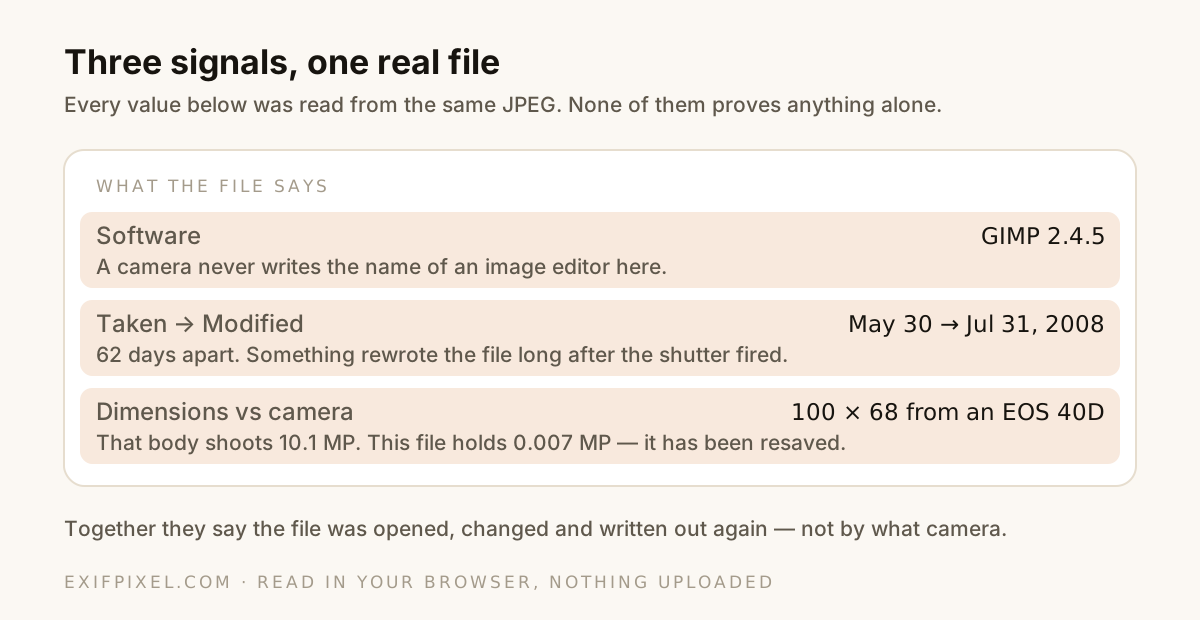
Cameras write their own firmware version into the Software tag. Editors overwrite it with their name. When that field says Photoshop, GIMP, Lightroom or Snapseed, the file was opened and written out again by that program.
Here is a real JPEG showing three independent signals at once:
Then compare the dates
A photo carries a capture date and a modified date. Straight out of a camera they match, or sit seconds apart. A modified date days or months later means something rewrote the file — an edit, a rotation, or a re-save by an app that recompressed it.
The reverse is also informative: if the modified date is earlier than the capture date, someone has been editing timestamps, because that ordering is impossible in normal use.
Check the dimensions against the camera
The Model field names the body. Look up what that body shoots and compare it to the pixel dimensions in the file. A 10-megapixel camera producing a 100-pixel-wide image means the file has been resized and resaved at least once — the original is somewhere else.
Compare it against a photo you trust
The strongest version of this check is a side-by-side. Take a picture you know came straight off the same camera, put it next to the one you are unsure about, and look at which fields disagree. An untouched file has a dense, consistent set of camera tags; an edited one is usually thinner, with gaps where the editor did not bother to copy values across.
Put two photos side by side. Open Compare EXIF
Where this method stops working
This is the part most guides skip, and it matters more than the tricks above.
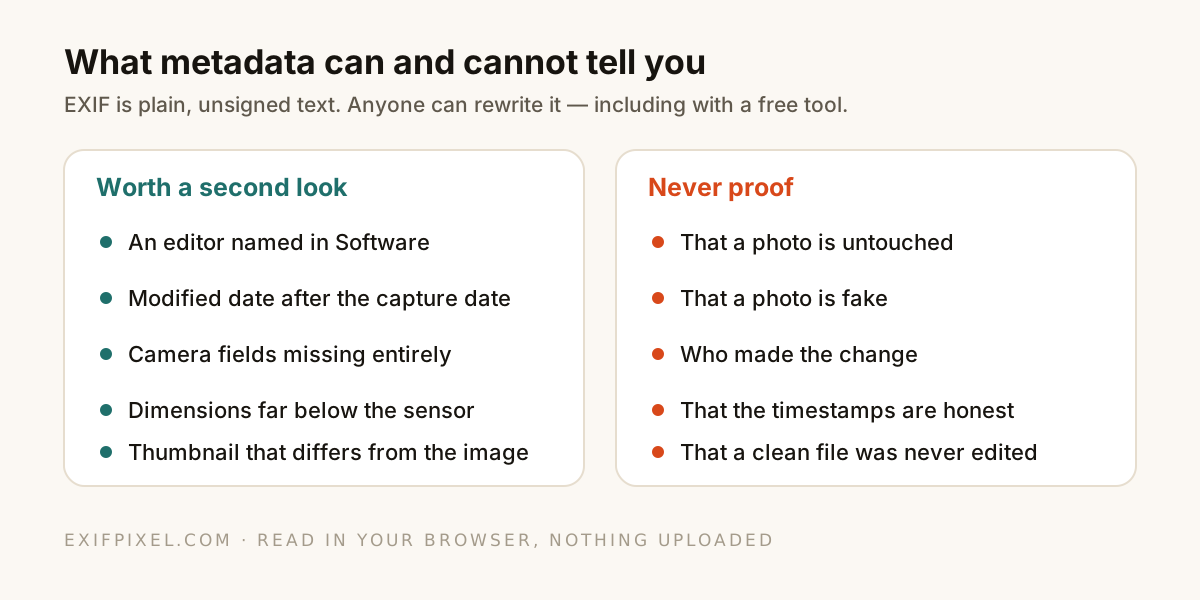
A clean file proves nothing. Every social network strips metadata on upload, so a photo downloaded from Instagram has no tags at all, and looks identical to one that was deliberately scrubbed. Absence of evidence is the normal state on the web.
Metadata can also be forged. It is unsigned text in the file header, and any free tool can rewrite it, including ours. Someone motivated to deceive you will not leave GIMP sitting in the Software field.
This is exactly the gap C2PA is meant to close: a cryptographically signed record of where a file came from and what was done to it, which cannot be rewritten with a text editor. Adobe and others surface it as Content Credentials. Very few files carry one yet, so its absence proves nothing — but when a file does have it, it is worth more than every unsigned tag combined.
Check a file for signed provenance. Open the C2PA Viewer
And plenty of edits leave no trace worth finding. Cropping in the Photos app, a filter applied on the phone, an export from a chat client all produce a file that looks ordinary because, at the metadata level, it is.
What to do when it matters
- Ask for the original file, not a screenshot or a re-share. Originals carry the tags; forwards do not.
- Look at the pixels as well as the header. Inconsistent lighting, edges and perspective survive metadata stripping.
- Check whether the same image exists elsewhere and earlier, with a reverse image search.
- Treat a matching set of camera tags as consistent with the claim, not as confirmation of it.
In everyday use, whether that is sorting your own library, sanity-checking a listing photo or seeing if a file has been through an editor, the metadata check is quick, free and usually right. In a dispute, it is a starting point and nothing more.
Read what a photo actually contains. Open the Metadata Viewer