How to See When a Photo Was Taken
The date sitting next to a photo in your file manager is usually the date the file arrived on that device, not the moment the shutter fired. Copy a picture from a phone to a laptop and that date resets. Download it from a chat app and it resets again. The real capture time is stored somewhere else entirely.
Three dates, and only one of them means what you want
Every photo file carries up to three different timestamps, and confusing them is the single most common reason people end up with the wrong answer:
- Date taken (DateTimeOriginal), written by the camera at the instant of capture. This is the one you want.
- Date created: when this particular copy of the file appeared on this device. Changes every time the photo is copied or downloaded.
- Date modified: the last time any byte of the file changed, including a rotation or an edit.
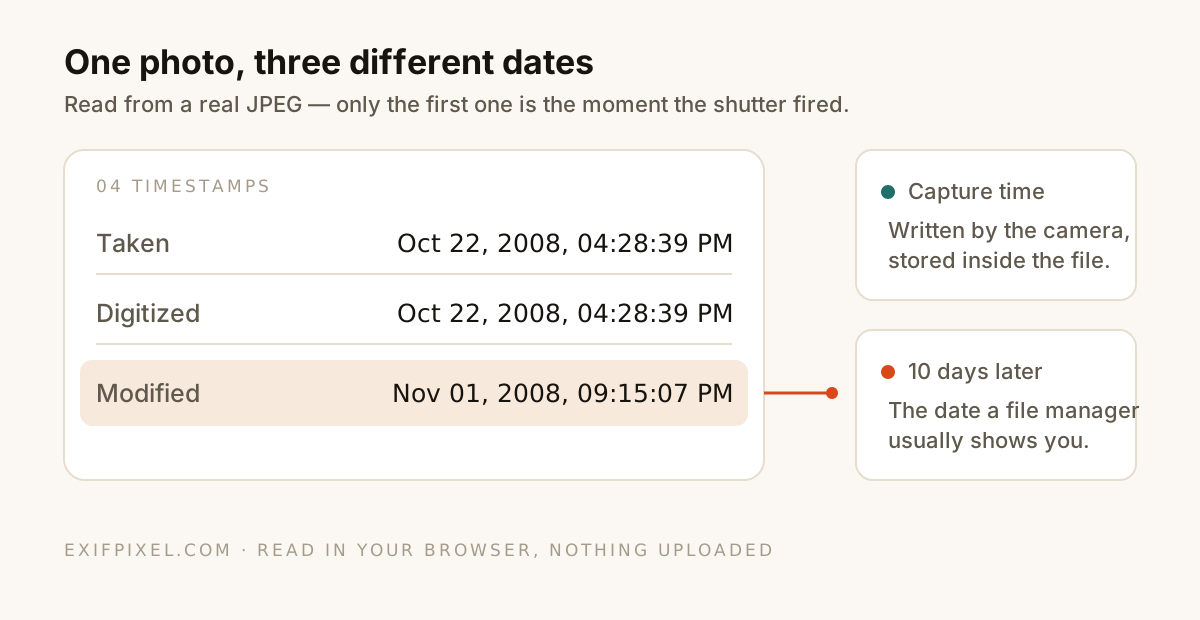
Only the first one lives inside the image, in the EXIF block. The other two belong to the filesystem and are rewritten freely as the file moves around.
The quickest way: read the EXIF directly
Since the capture time is embedded in the file, you can read it on any device with a browser. No app, no upload. Drop the photo into the EXIF viewer and look for DateTimeOriginal. If the camera recorded it, it will be there along with the make, model and exposure settings.
Check a photo's real capture time. Open the EXIF Viewer
On iPhone
Open the photo in the Photos app and swipe up, or tap the info button. The date and time appear at the top of the panel, and if location was on you also get a map. The Photos app reads this from EXIF, so it reflects the true capture time rather than the file date.
On Android
In Google Photos, open the image and tap the info button or swipe up. Look for the "Taken on" line. Android distinguishes this from the file date, which is what a plain file browser would show you instead.
On Windows
Right-click the file, choose Properties, then the Details tab. Scroll to the Origin section and read "Date taken". Ignore the Created and Modified fields on the General tab. Those are filesystem dates and will often be much later than the real one.
On Mac
Open the photo in Preview, then choose Tools → Show Inspector and pick the EXIF tab. In Finder, Get Info shows the filesystem dates instead, so the Inspector is the reliable route.
When there is no date at all
Plenty of photos have no capture time, and that on its own tells you something:
- Screenshots. The device never opened a shutter, so there is nothing to record.
- Anything downloaded from Instagram, Facebook, X or WhatsApp, all of which strip metadata on upload.
- Files that have been edited and re-saved by an app that discards metadata.
- Scans of printed photographs, which carry the date of scanning at best.
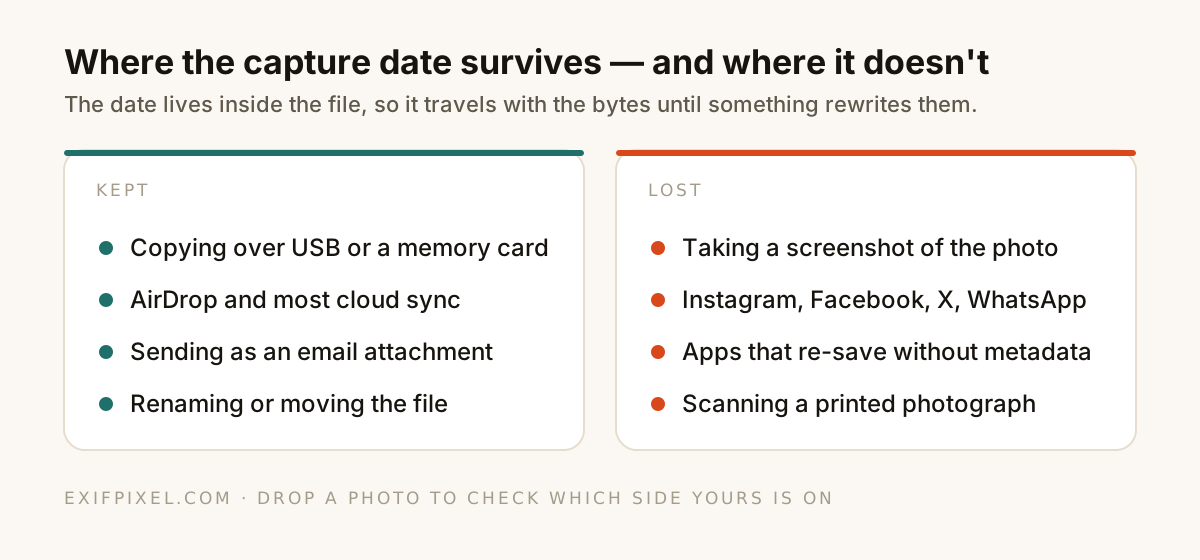
In those cases the honest answer is that the file no longer knows. You can still infer a latest-possible date from the filesystem timestamps, since a copy cannot predate its original.
Can the date be trusted?
For everyday purposes, yes. A camera has no reason to lie. But EXIF is plain, unsigned data, so it can be rewritten by anyone with a free tool, including ours. It also inherits any mistake in the camera's own clock, which is why holiday photos taken abroad often land in the wrong hour.
So treat a capture date as strong evidence in ordinary use and weak evidence in a dispute. If the timestamp genuinely matters, corroborate it with something outside the file.
Wrong date on your photos? You can correct it. Open Change Photo Date