HEIC vs JPG: Why Your iPhone Photos Won't Open on Windows
You email a photo from your iPhone, and the person on the other end says nothing happens when they double-click it. The file ends in .heic, and their computer has no idea what that is.
Nothing is broken. Apple switched its default photo format in 2017, and a good part of the software world has still not caught up.
What HEIC actually is
HEIC is a container holding an image compressed with HEVC, the same codec used for 4K video. Compared with JPEG, whose compression method has barely changed since 1992, it fits roughly the same picture into about half the space, and it can also store depth maps, Live Photo frames, transparency and bursts of images in one file.
Apple adopted it with iOS 11 to keep photo libraries from doubling in size as camera resolution climbed. On the phone itself the choice is invisible: everything opens instantly.
Where it stops working
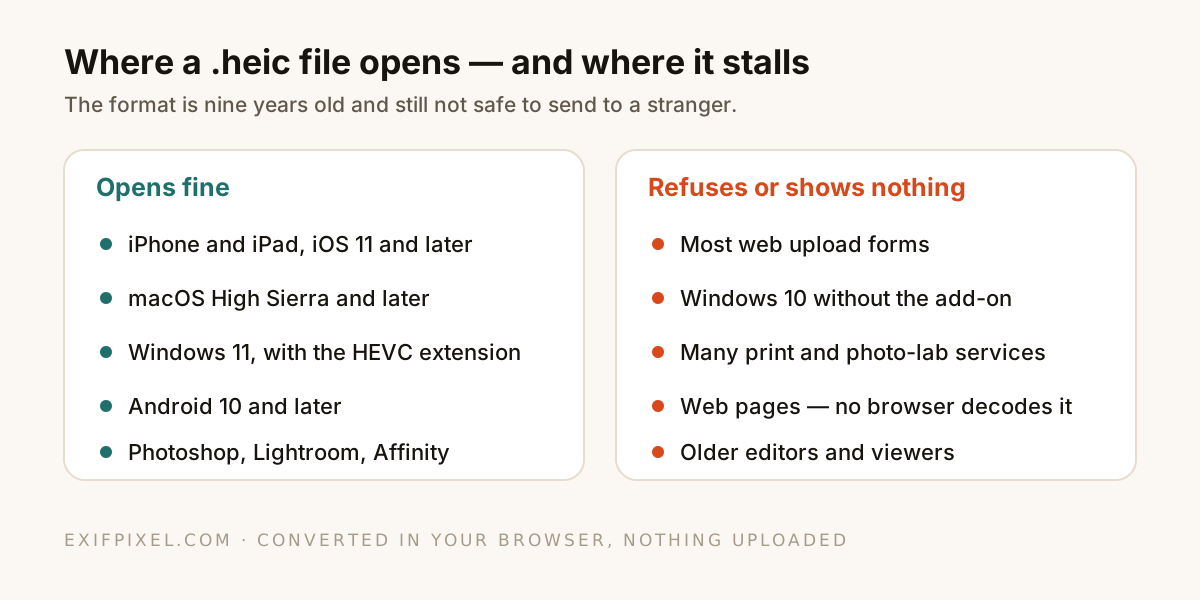
The web line is the one that surprises people. No mainstream browser can decode HEIC, so a .heic file cannot be put on a web page at all. That is also why so many upload forms reject it outright: the site could not display what you gave it.
What converting actually does to the file
Here is the part almost no guide mentions. Converting HEIC to JPG at high quality usually makes the file bigger, not smaller, because you are taking the same pixels out of an efficient modern codec and re-encoding them with a much older one.
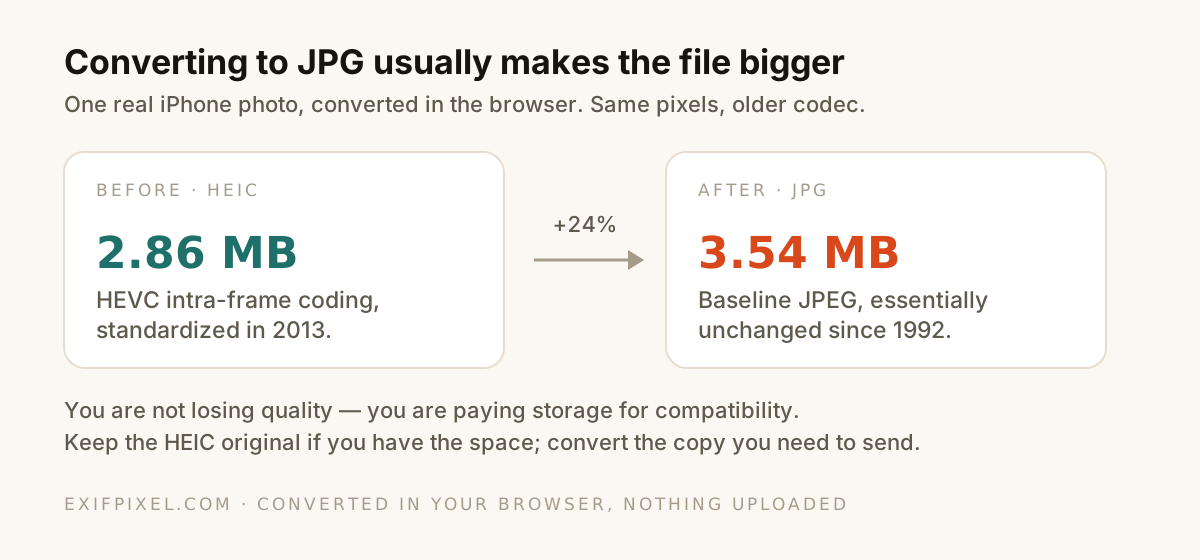
It also means conversion is not free in quality terms. JPEG is lossy, so re-encoding discards a little detail. It is invisible at sensible quality settings, but a reason to keep the HEIC original rather than convert and delete.
Converting without uploading your photos
Most online converters ask you to send your photos to their server. For holiday snaps that may not bother you; for anything personal it should, because those files carry your camera model, capture time and often your GPS coordinates.
A browser can do the whole job locally, and you get to decide whether the metadata comes along for the ride.
Convert iPhone photos in your browser. Open HEIC to JPG
Or stop your iPhone making them
If you send photos to Windows users constantly, change the default: Settings → Camera → Formats → Most Compatible. New photos are saved as JPEG from then on, at the cost of roughly double the storage per picture.
There is also a middle setting worth knowing about. Under Settings → Photos → Transfer to Mac or PC, choosing Automatic converts to JPEG when you transfer while keeping the efficient format on the phone. Keep Originals sends the .heic untouched — which is the setting behind most "I can't open this" emails.
Which should you keep?
- Keep HEIC for your own library. Half the storage, no visible quality cost, and every Apple device reads it.
- Convert to JPG for anything leaving your hands: uploads, print orders, attachments, websites.
- Convert a copy, not the original, since JPEG re-encoding is lossy and one-way.
- Check the metadata before sending. Conversion can carry the location straight into the new file if you let it.
See what your HEIC files contain. Open the Metadata Viewer